
Essential cookies required: We use reCAPTCHA cookies to protect our forms from abuse and prevent automated attacks.Without these cookies, form submission will be disabled for security reasons.Learn more in our Privacy Policy
Instant Score Setup
What is Instant Score Setup?
Instant Score Setup is a one-time onboarding feature that allows new StoreScore customers to begin with a meaningful StoreScore immediately, rather than waiting weeks for new orders to be placed, fulfilled, and reviewed.
Instead of starting from zero and waiting for future orders, StoreScore looks back at recent fulfilled orders and invites those customers to share their experience — using the exact same invitation process as normal ongoing scoring.
This accelerates data collection, not the score itself. Your score is still calculated from real customer feedback, using the same rules, thresholds, and protections as always.
Why this exists
New stores often face a credibility gap:
- Customers want reassurance before buying
- Scores need real feedback to be meaningful
- Waiting weeks for enough new orders delays trust
Instant Score Setup solves this by:
- Using real, recent customer experiences
- Avoiding artificial seeding or inflation
- Preserving statistical integrity
- Keeping StoreScore fair and unbiased
Who can use it?
Instant Score Setup is available:
- Only to new installs
- For 14 days after installation
- Only once per store
- Completely optional
If you don't use it, your store will continue with normal onboarding and collect data from future orders only.
How it works (in plain English)
When you activate Instant Score Setup, StoreScore:
- Scans your recent order history
- Identifies up to 250 eligible orders
- Automatically sends feedback invitations
- Waits for customer responses
- Calculates your score as responses arrive
Nothing about the scoring model changes.
This is simply a faster way to collect your first set of real customer opinions.
Eligibility rules
Only orders that meet all of the following conditions will be included:
- Order is fulfilled
- Fulfilled at least 14 days ago
- Within the last 60 days
- Not previously contacted
- Valid customer contact details
These rules ensure:
- Customers have actually received their items
- Experiences are fresh and relevant
- Feedback is fair and informed
Step-by-step walkthrough
Step 1: Locate the panel
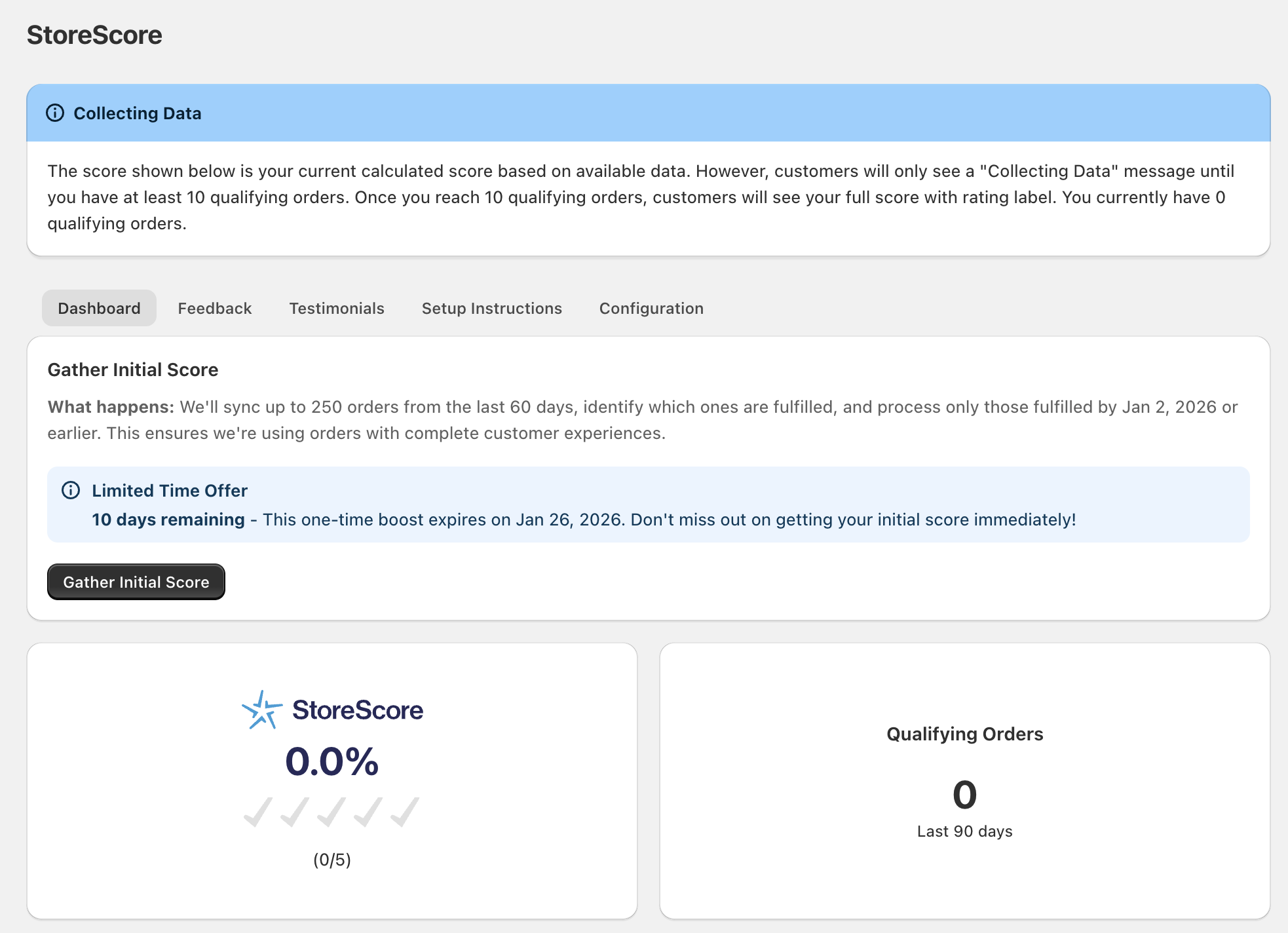
After installing StoreScore, you'll see a panel on your main dashboard titled:
Instant Score Setup
This panel is visible for 14 days after installation.
Step 2: Start the scan
Click:
Gather initial score
StoreScore will now scan your recent fulfilled orders and identify those that are eligible.
This usually takes just a few seconds.
Step 3: Review the eligible orders
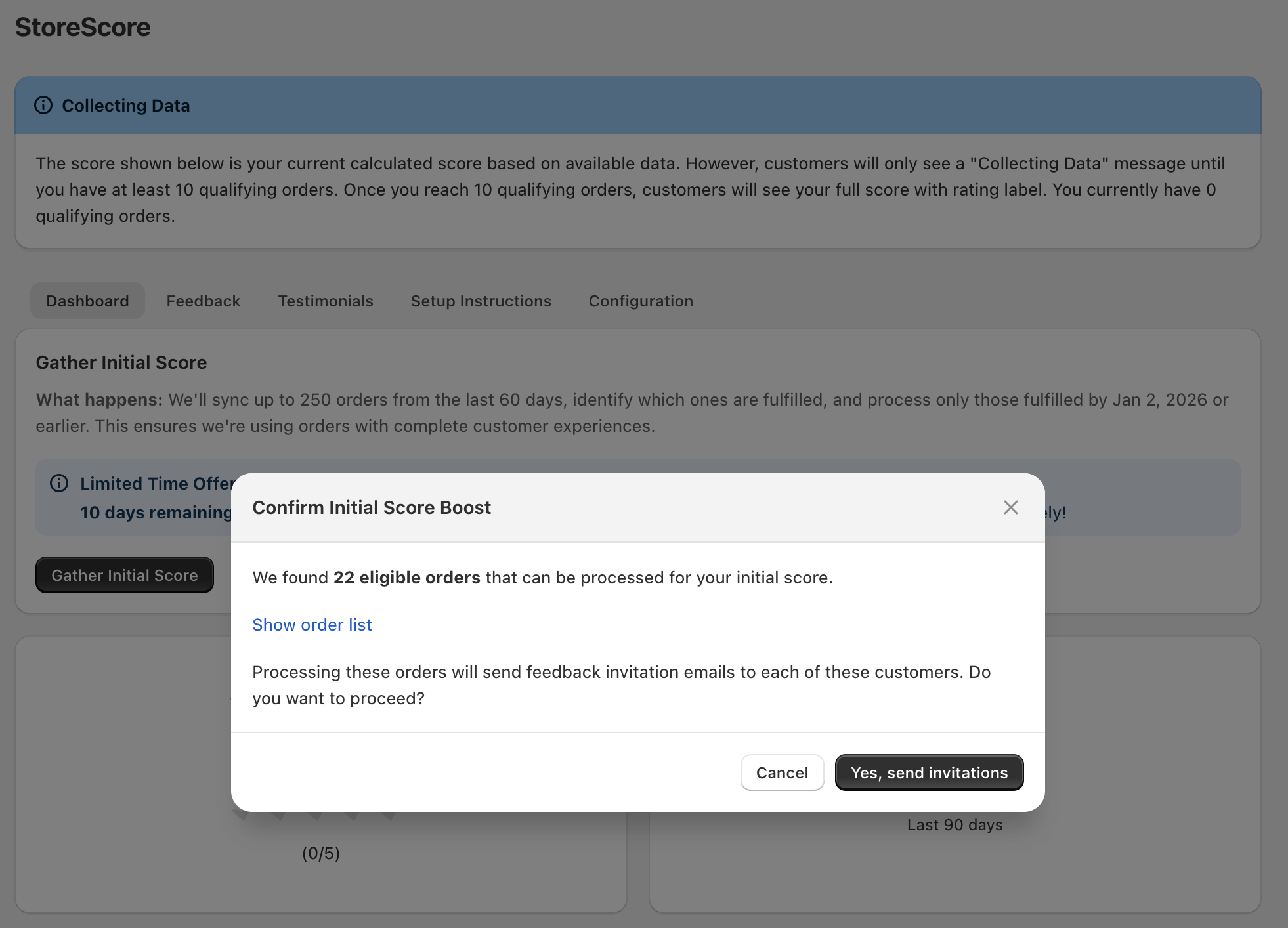
Once scanning is complete, you'll see how many eligible orders were found.
Example:
22 orders found
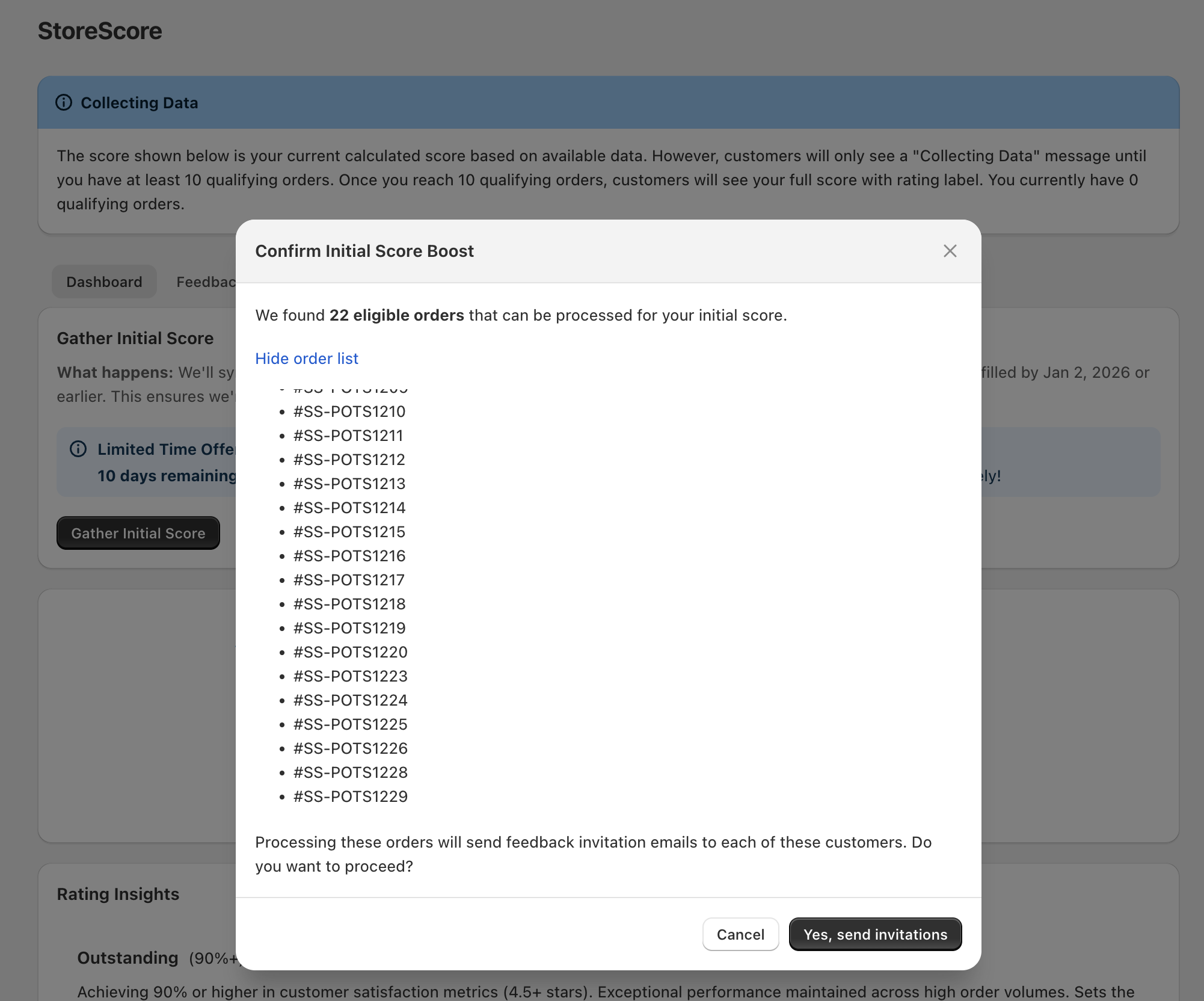
If you'd like to review them, click:
Show Order List
You'll see a bullet-point list of the order IDs that will receive invitations.
Step 4: Confirm and send invitations
When you're ready, click:
Yes, send invitations
StoreScore will immediately begin scheduling feedback emails for these customers.
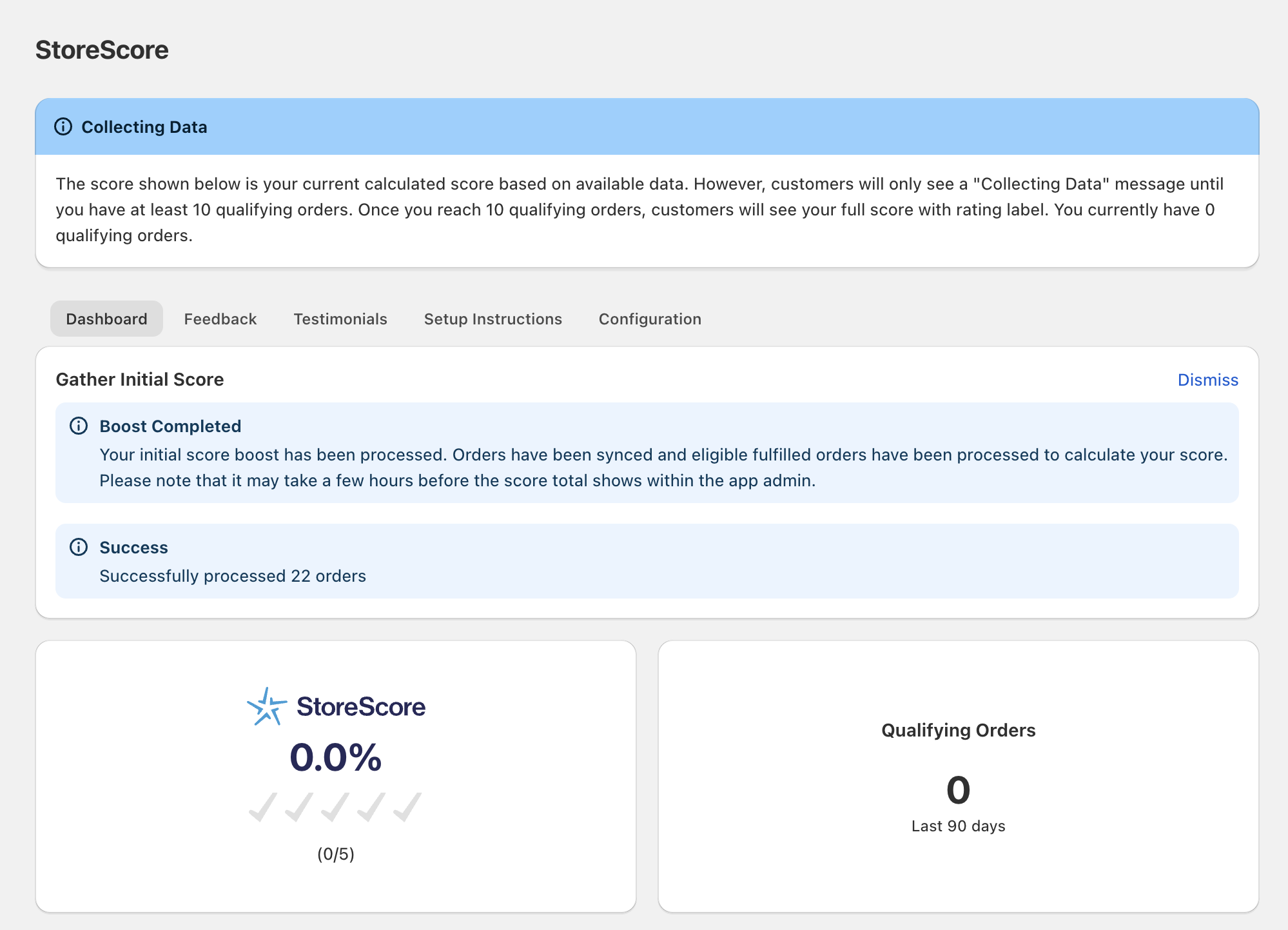
Step 5: Confirmation
You'll see a success message confirming how many invitations were scheduled.
At this point:
- Invitations are being sent
- Feedback will start arriving
- Your score will update as responses are received
Step 6: Dismiss the panel
Once completed, you can click:
Dismiss
The Instant Score Setup panel will disappear permanently.
Important things to understand
This does not boost or inflate your score
Instant Score Setup:
- Does not pre-fill ratings
- Does not insert artificial data
- Does not manipulate results
- Does not favour positive feedback
Your score is still determined only by real customer responses.
You can't exclude individual orders
All eligible orders must be included.
Allowing manual selection would enable cherry-picking and introduce bias — something StoreScore is specifically designed to prevent.
This protects the integrity of your score.
Customers experience the normal process
From the customer's perspective:
- They receive the standard StoreScore email
- They are asked for honest feedback
- Nothing about the experience is different
The only difference is when the invitation is sent — not how it works.
Minimum data threshold still applies
To ensure fairness and statistical reliability, StoreScore requires at least 10 qualifying responses before your score becomes visible on frontend widgets.
If fewer than 10 responses are received, your store will remain in:
Collecting Data Mode
This prevents tiny sample sizes from misrepresenting your store.
When will my score update?
Score recalculation is not instantaneous.
Your score will update when:
- A new order is placed on your store (automatic refresh)
- OR you manually click Refresh my score in the Configuration tab
We recommend waiting about 30 minutes after sending invitations before refreshing.
What happens if I ignore this?
If you do nothing:
- The panel will disappear after 14 days
- No historical orders will be contacted
- You'll continue with standard forward-only scoring
Nothing breaks — you'll simply build your score more gradually.
Usage & billing
All orders contacted via Instant Score Setup:
- Count toward your usage allowance
- Are treated exactly the same as future orders
- Follow the same pricing rules
There is no special pricing or exemption.
Frequently Asked Questions
Can I run this more than once?
No. Instant Score Setup is a one-time onboarding feature.
Does this affect future scoring?
No. After setup, your store continues in normal ongoing mode.
What if customers don't respond?
That's normal. Only real responses affect your score.
Why the 14-day delay rule?
To ensure customers have actually received and experienced their purchase.
Can I pause or undo this?
No. Once invitations are sent, they cannot be recalled.
Summary
Instant Score Setup gives you a fair, fast, and trustworthy way to begin your StoreScore journey.
It does not manipulate outcomes — it simply removes the waiting period.
You get:
- Real feedback
- Real data
- Real scoring
- From day one
If you have any questions, contact StoreScore support.